Multi-Factor Authentication (MFA) at GCCCD
Grossmont-Cuyamaca Community College District has deployed single sign-on (SSO) for access to GCCCD resources. This means almost all resources and services are tied to one account. To protect your data and privacy, multi-factor authentication (MFA) is now required to log in to your account. Learn more below.
What Is MFA?
MFA, or multi-factor authentication, is a method to ensure that only you have access to your account. Users are prompted for a second verification method after their password is entered.
How to Set Up MFA
All users will need to set up MFA in order to access or manage their @gcccd.edu SSO account. There are currently two options:
Option 1 - Using a Phone Number and Personal Email
For this option, you will set up a phone number and a personal email address.
When you log in for the first time, or after an MFA reset you will be prompted to set up your MFA.
Choose Next on the screen that reads Let's keep your account secure. If you are asked to download and set up an app, look instead for a link that reads Other options:
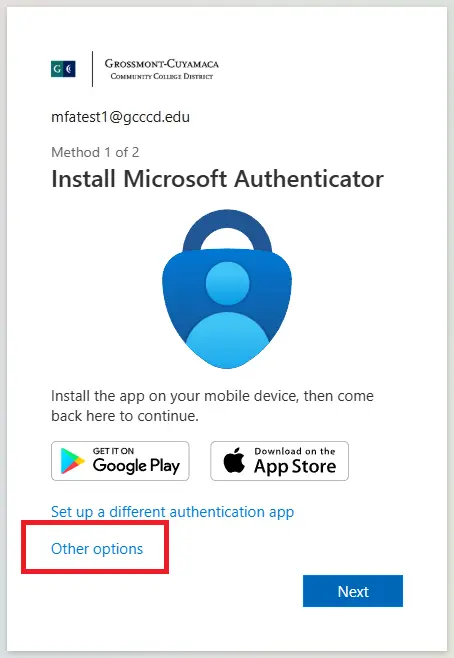
This will allow you to use your phone number to receive a six-digit code. You will have to repeat the process to add a personal email address as well (used for password reset requests).
*Note: At least a phone number and email address are required to manage your own password/account.
Option 2 - Set Up the Microsoft Authenticator App
For this option, you download and set up a smartphone app, then confirm your phone number.
Users without consistent cell service or who prefer not to receive texts may download and set up the Microsoft Authenticator app by following the Microsoft Authenticator setup guide .
Using the Authenticator app allows users to access GCCCD resources by entering their password and then approving a notification on their device.
To Switch from Using the App to Using a Phone Number
If you are already using the Authenticator app and wish to change to receiving a text message instead (for example, when upgrading or buying a new device), you will need to change your default sign-in method:
- Access your login security methods .
- Log in with your @gcccd.edu SSO credentials. If your phone number is not present, add it via + Add sign-in method. Do the same for a personal email address if not listed.
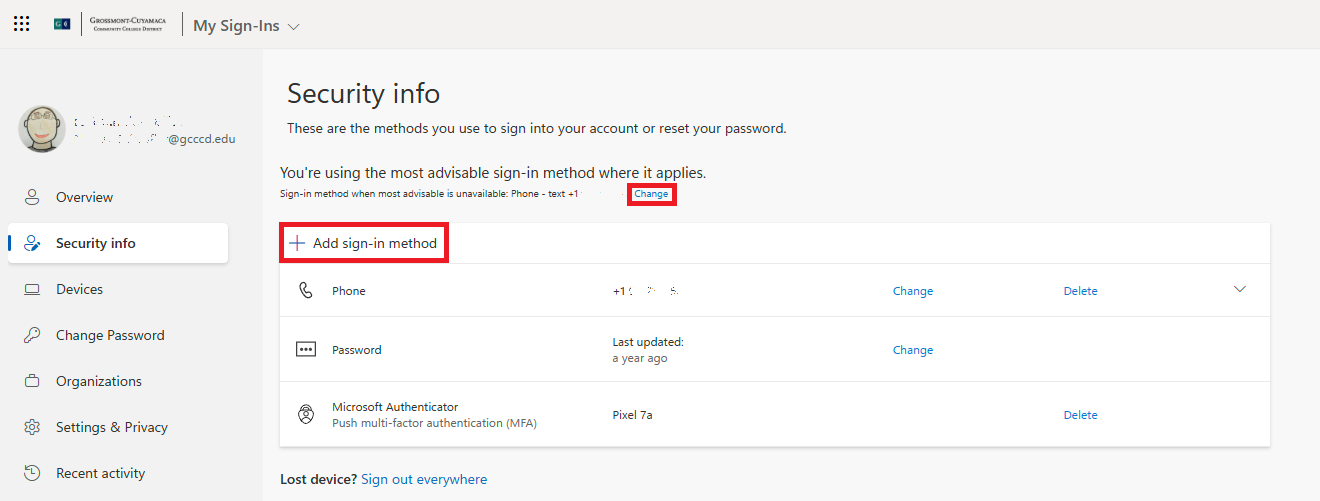
- Find the text Sign-in method when most advisable is unavailable: and select Change. Choose Phone - text from the drop-down menu and confirm your phone number.
- Locate the Authenticator app listings and select Delete for each entry.
- Once all Authenticator entries are deleted, you may remove the app from your phone. Do not delete if used for other accounts.
The next time you sign in, you will be prompted to receive a text message for verification.
MFA Required to Unlock or Reset Account/Password
By adding security factors or utilizing the Authenticator app , users may reset their @gcccd.edu SSO password using Microsoft’s Password Reset tool .
Enter your @gcccd.edu email address and follow the prompts to reset your password if locked out, forget it, or suspect malicious activity.
Passwords must be 16 characters or longer. Resetting/updating your @gcccd.edu SSO password affects Self-Service, Canvas, GCCCD email, Workday, printing, campus computers, Wi-Fi, Library database access, and more.
*Note: Passwords may be changed no more than once every 24 hours.
Users without MFA fully enabled must contact their Help Desk for assistance.
Following these login procedures helps secure your personal data and college systems.
Need Assistance?
If you encounter difficulties completing MFA setup or adding security factors, contact your appropriate Help Desk.
Cuyamaca College
Email Cuyamaca Help Desk at c-helpdesk@gcccd.edu. You may also call the Cuyamaca Help Desk at (619) 660-4395.
District Services
You may email District IT Help Desk at helpdesk@gcccd.edu, or call the District IT Help Desk at (619) 644-7547.
Grossmont College
Email Grossmont's Help Desk at g-helpdesk@gcccd.edu or call Grossmont Help Desk at (619) 644-7742.